
System settings
Schedule studio hours
The Director 4K can turn on and off automatically on a schedule.
- Enable Automatic power on/off.
- Select the Power-on days.
- Choose the Start-up time and Shutdown time, then click Save.
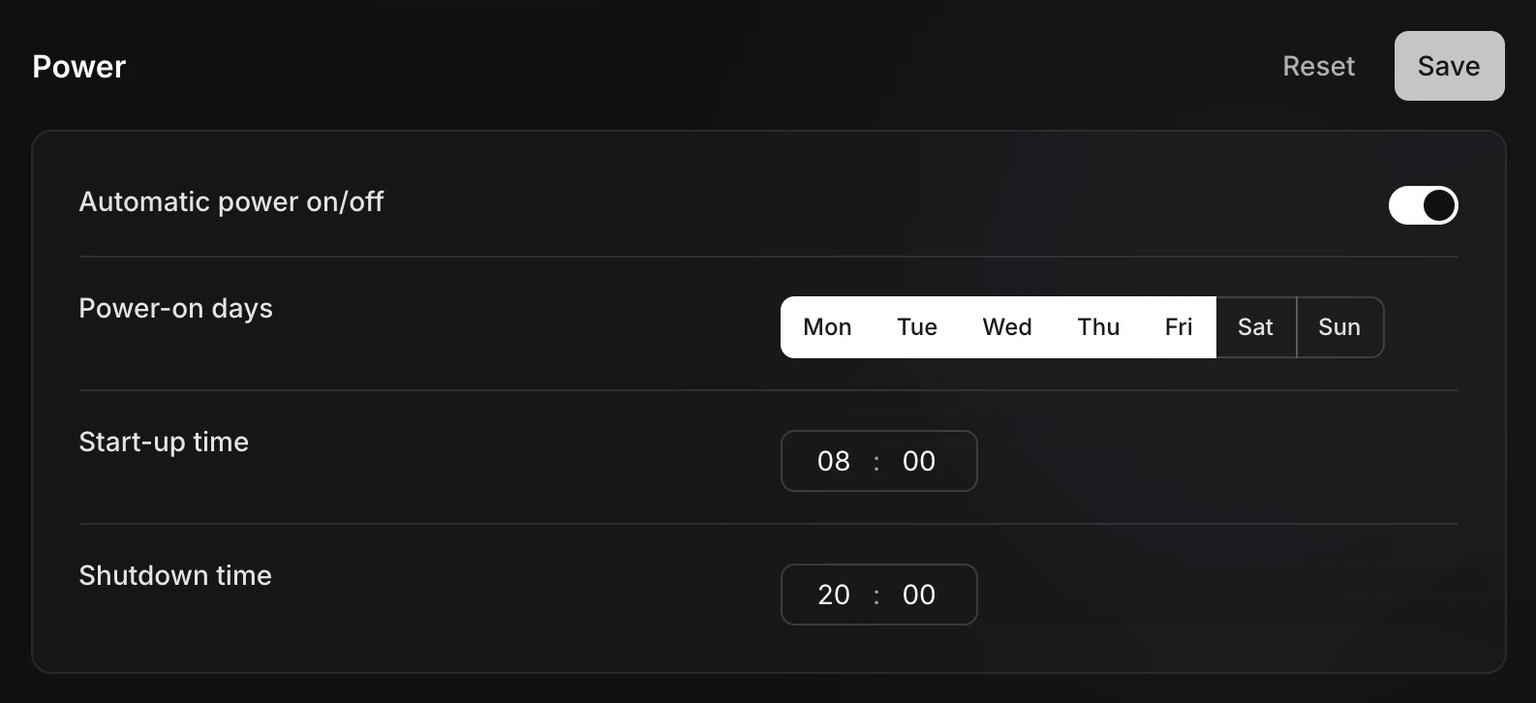
The schedule follows the studio’s Time zone, which you can set on the same page.
A 30-second countdown appears before shutdown. Press the Deck’s power key during the countdown to cancel shutdown.
Choose a language
Choose Français or English, then save. This setting applies to Miroir Remote, the Deck and the monitoring interface.
Hostname
The hostname determines the Director 4K’s local address.
Edit the Name, then save. The change interrupts the connection: find the studio again in Miroir Remote or open its new address.
Configure the network connection
In DHCP mode, the network automatically assigns an address to the Director 4K. Select an Interface to view its status and IPv4 address.
Select Static IP and enter the settings for your network: IP address, Mask, Gateway and DNS servers. The mask uses CIDR notation, for example 24 for 255.255.255.0.
Click Save. The connection may drop while the network is reconfigured; reconnect at the new address. To return to an automatically assigned address, select DHCP and save.
Upload the Certificate (.crt) and its Private key (.key) in PEM format, then click Save. This replaces the certificate used for HTTPS connections to the studio.
Regenerate creates a new self-signed certificate. Browsers that trusted the previous one will ask you to accept the new one.
Manage updates
Automatic updates are enabled by default. You can change this setting here:
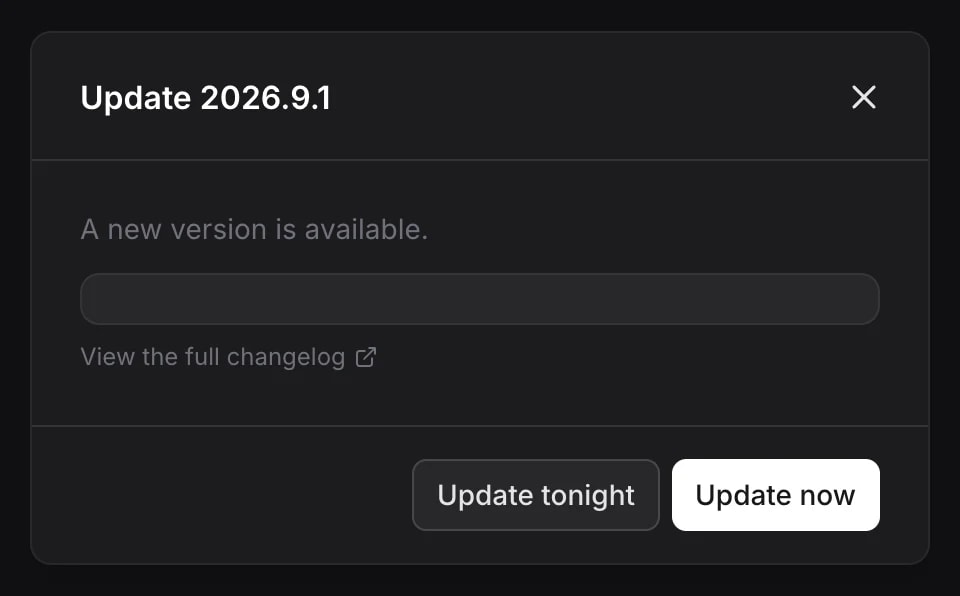
When an update is available, open the notification bell, then View the update. Choose Update now or Update tonight. Installation restarts the Director 4K, so finish your session before starting it.
Download logs
Click the download icon beside the log file you need.