
Presentations
The presentation computer provides content for your show: slides, demonstrations, videos or music.
Connect the computer
Connect the computer’s HDMI output to a free INPUT port on the Director 4K.
Display your content through this HDMI output. To send audio too, select it as the computer’s audio output device.
Configure the video input
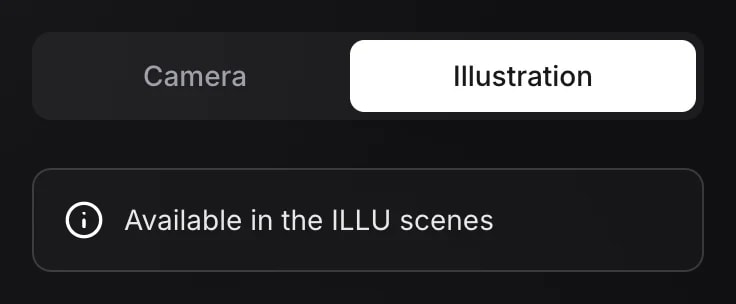
Under Settings → Video, open the source for the computer’s HDMI input. Choose Illustration as its type, then click Save.
Show content during a session
 Full-screen illustration
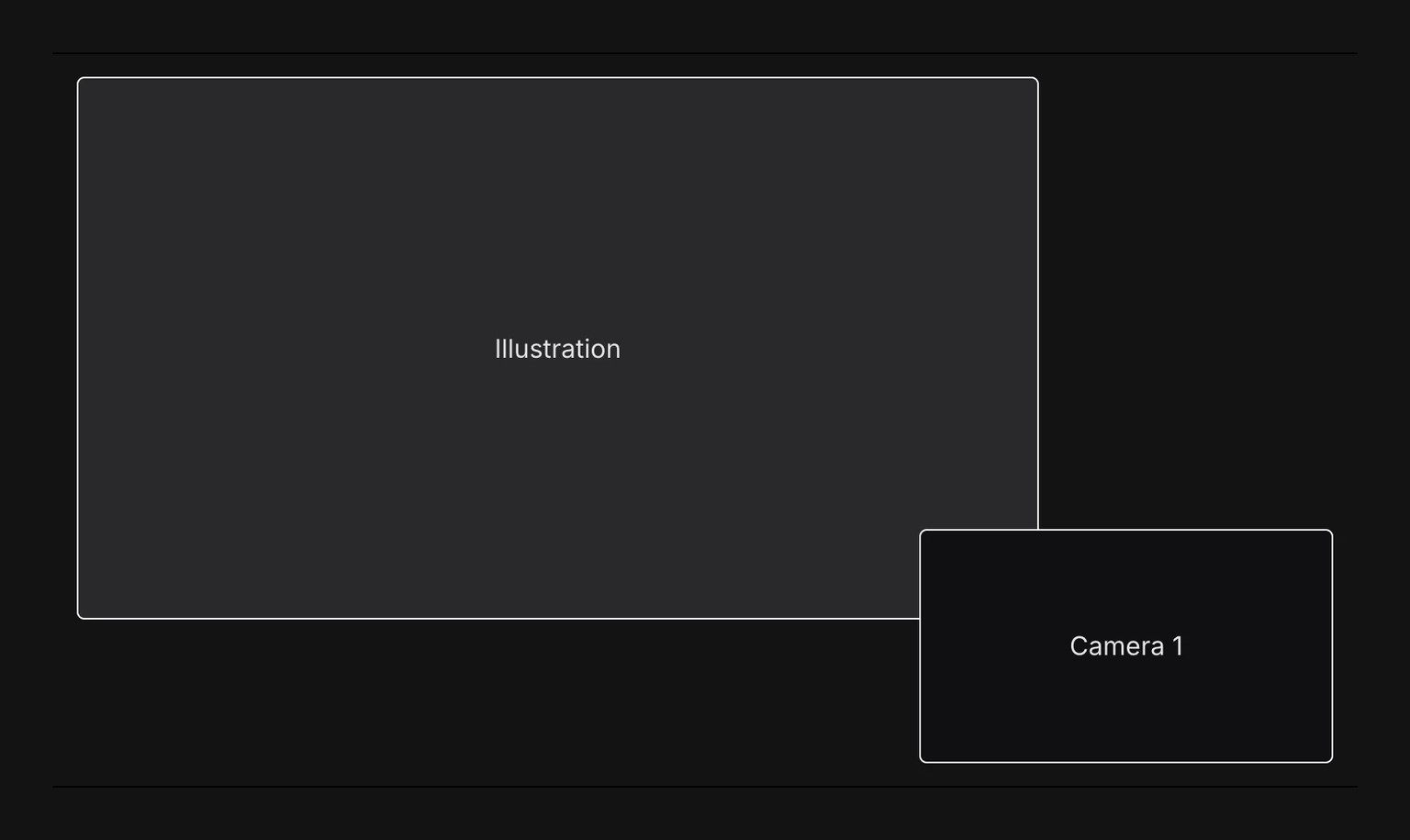
 Illustration + camera
To hear the computer’s audio in the studio, set up the listening outputs.
To play music without showing the computer, play it on the computer and select another scene, such as Standby screen. In that scene’s audio settings, leave Mute the illustration audio disabled.
Select the HDMI output connected to the Director 4K as the computer’s audio output. During the session, unmute illustration audio with this key:
 Illustrations and clips
Zoom or Teams
Use the presentation computer to bring a Zoom or Teams call into your show. To send the studio program to the meeting, add an HDMI-to-USB capture card with audio, such as the Elgato Cam Link 4K.
Connect the computer and capture card
The computer sends participant picture and sound to the Director 4K through its Illustration source. The capture card returns the studio program to that same computer.
- Connect the capture card as shown above, using a DisplayPort-to-HDMI adapter if needed.
- In Settings → Displays, assign (Advanced) Meeting computer to that output and click Save.
Choose the devices in Zoom or Teams
In the meeting app’s settings, select:
| Setting | Device |
|---|---|
| Camera | The USB capture card |
| Microphone | The capture card’s audio input |
| Speaker | The computer’s HDMI output connected to the Director 4K |