
Users and access
Each team member can sign in to the Director 4K with their own account.
Choose the right role
| Role | Access |
|---|---|
| Administrator | Studio settings, video sources, users and all organization profiles |
| Operator | Their personal profiles, organization profiles, sessions and their recordings |
Add a user
Enter the Username the person will use to sign in. To show a different name in the interface, also enter a Display name. Choose Operator or Administrator, then click Create.
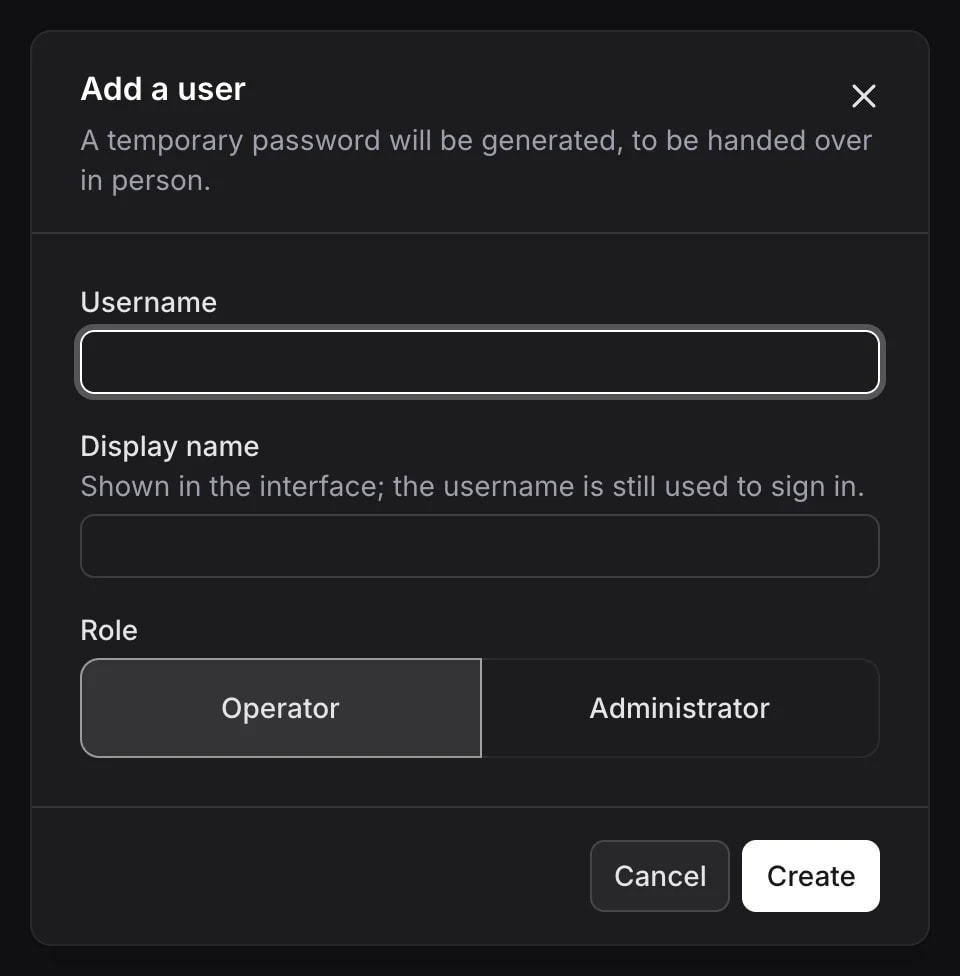
The Director 4K generates a password and shows it only once. Copy it and give it directly to that person. They can then change it here:
Set your PIN
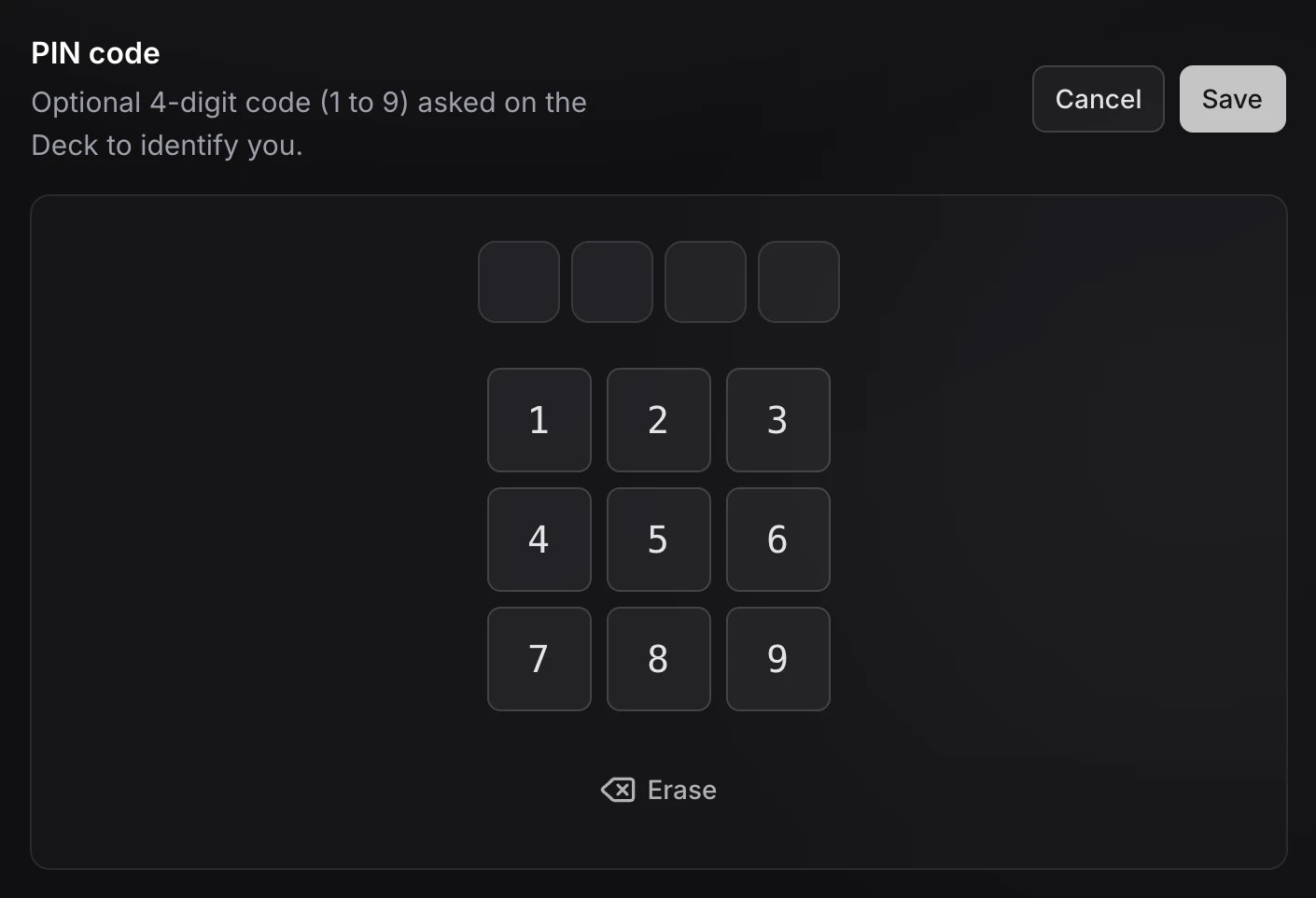
A PIN identifies you on the Deck before you choose your show. Each user can set their own from their account in Miroir Remote.
Share a profile
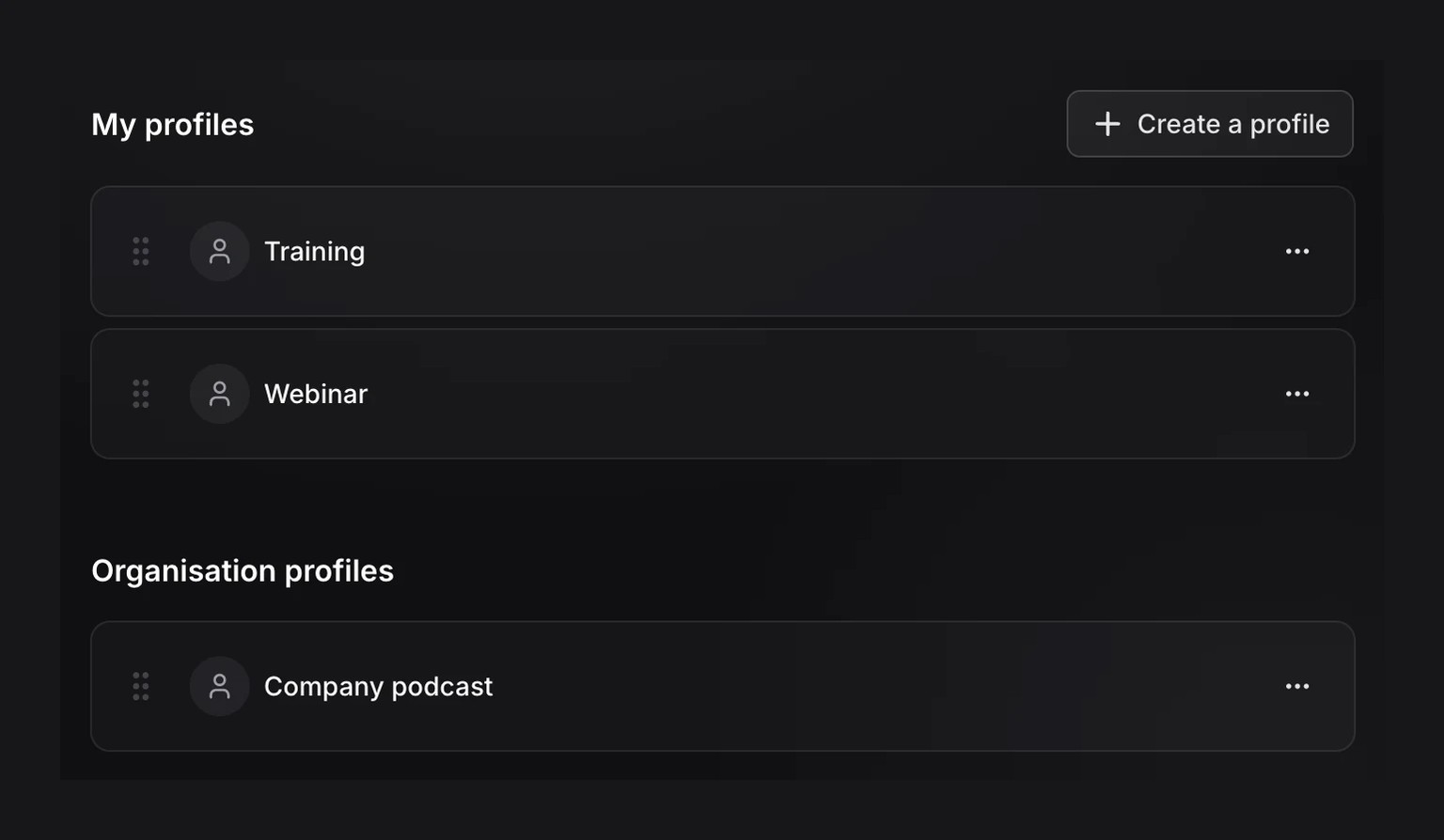
A new profile belongs to the person who creates it. They can edit it and find it under My profiles. Organization profiles are available to all users, but only administrators can edit them.
An administrator can permanently share their personal profile with Move to the organisation. Duplicate creates a personal copy of a shared profile.
Manage access
The list shows each account’s role and status. Click a row to edit its name or role. Open the three-dot menu for other actions.
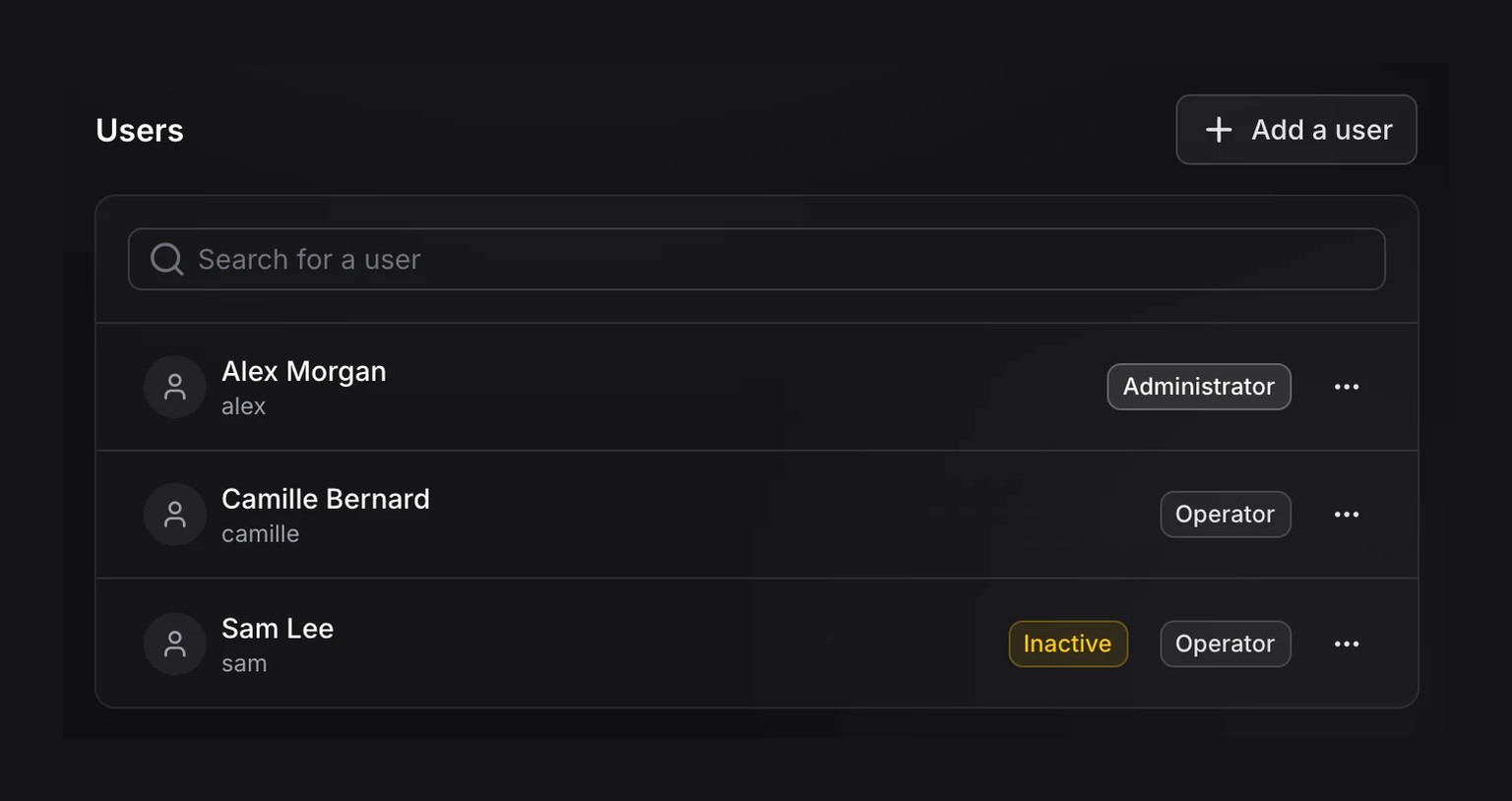
Deactivate keeps the account, its profiles and its recordings. The person can still sign in, edit their profiles and browse their recordings, but can no longer start a session and no longer appears on the Deck.
Reset password closes open sessions and generates a new password.
View as this user lets an administrator inspect an operator’s interface.
Deletion permanently removes the account, its personal profiles and its personal recordings.