
Remote guests
The Meeting service brings a remote guest’s camera and microphone into your show.
Start a meeting from the Deck
 Menu
Menu Meeting
 New meeting
- Choose New meeting. The studio creates and joins the meeting automatically.
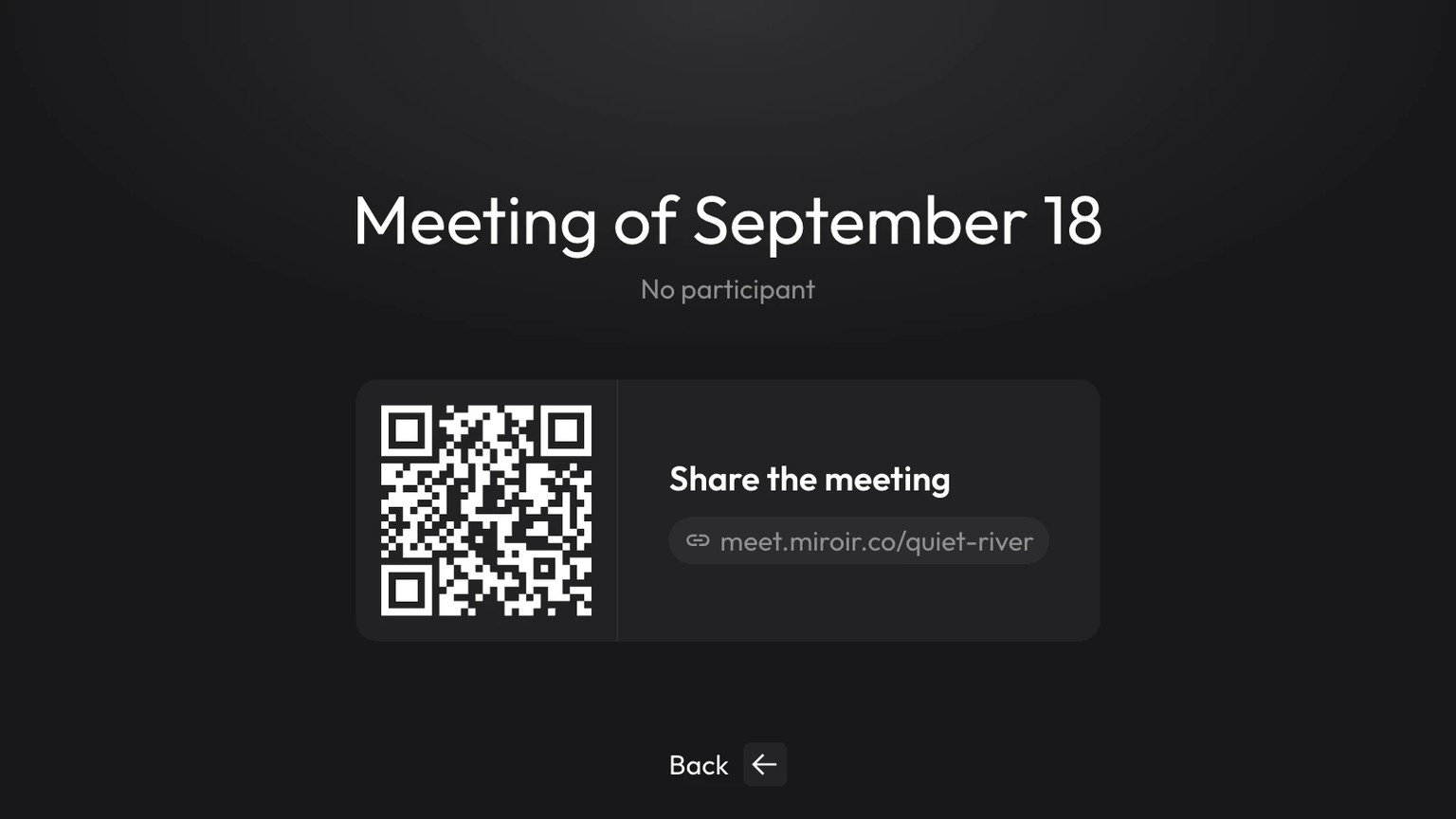
- Your monitoring display shows the join URL and a QR code.
- Scan the QR code with your phone to open the sharing page, then copy or share the link with your guest.
You can find the QR code and join URL again by returning to Menu → MEETING during the call.
Join as a guest
The guest interface currently uses French labels. The guest opens the link in a browser, allows access to their camera and microphone, then:
- chooses their camera (Caméra), microphone (Microphone) and speaker (Haut-parleur) below the preview;
- enters their name;
- clicks Rejoindre maintenant (Join now).
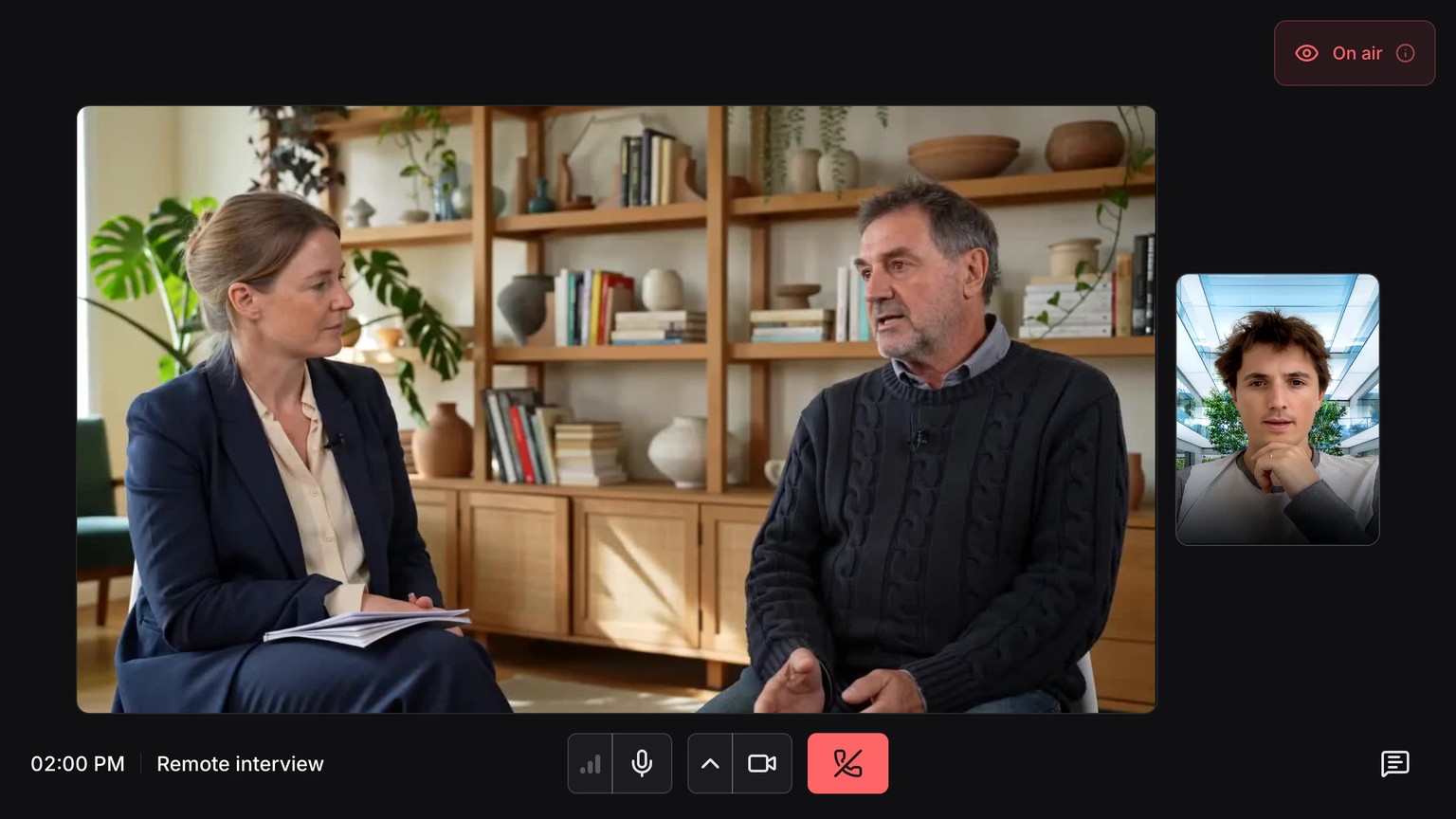
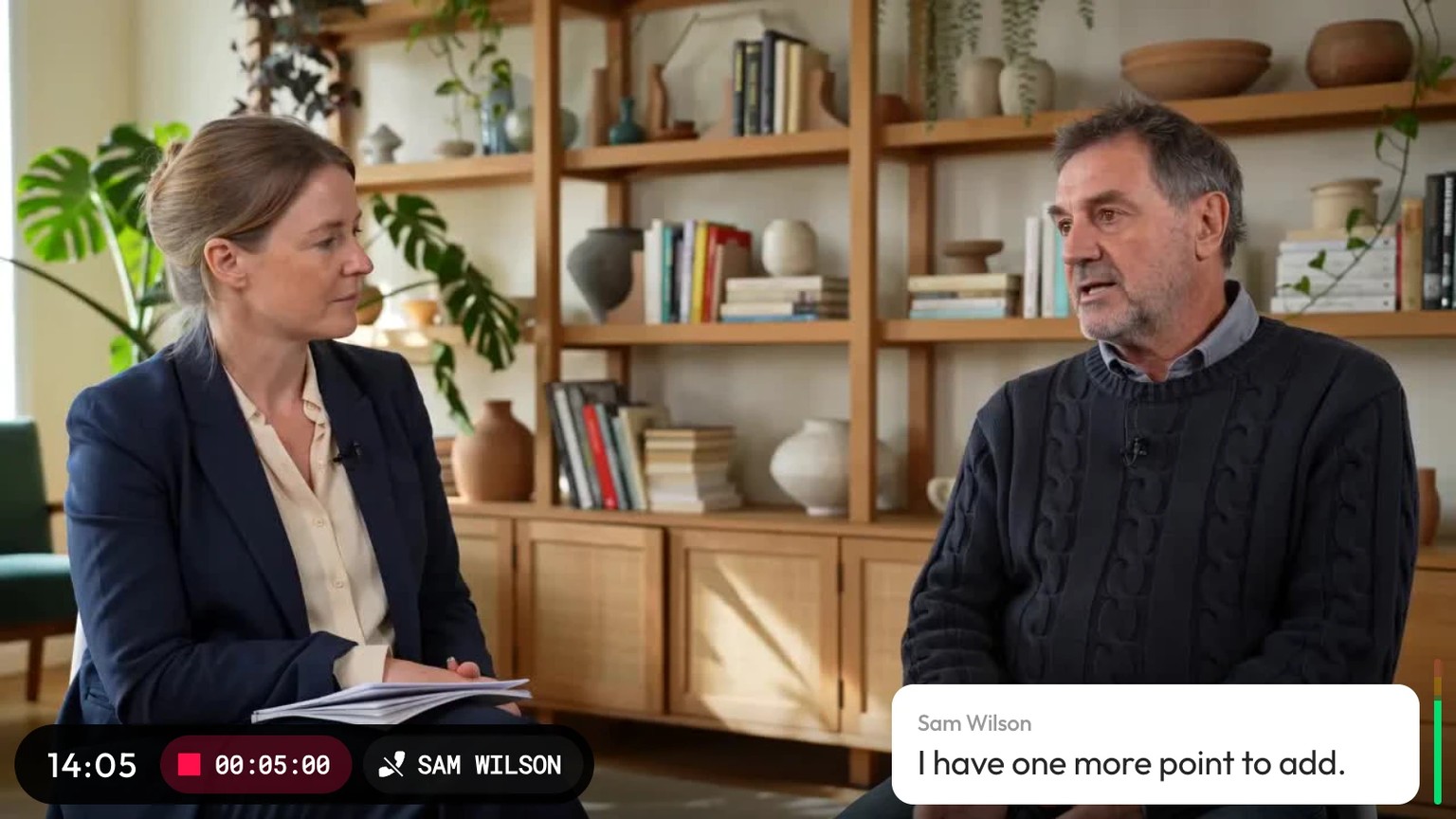
Once in the room, the guest sees the studio’s program and their own preview.
Guests are on air: their voices feed the program and SmartSwitch can show their cameras.
To hear guests in the studio, set up the listening outputs.
Put guests on hold
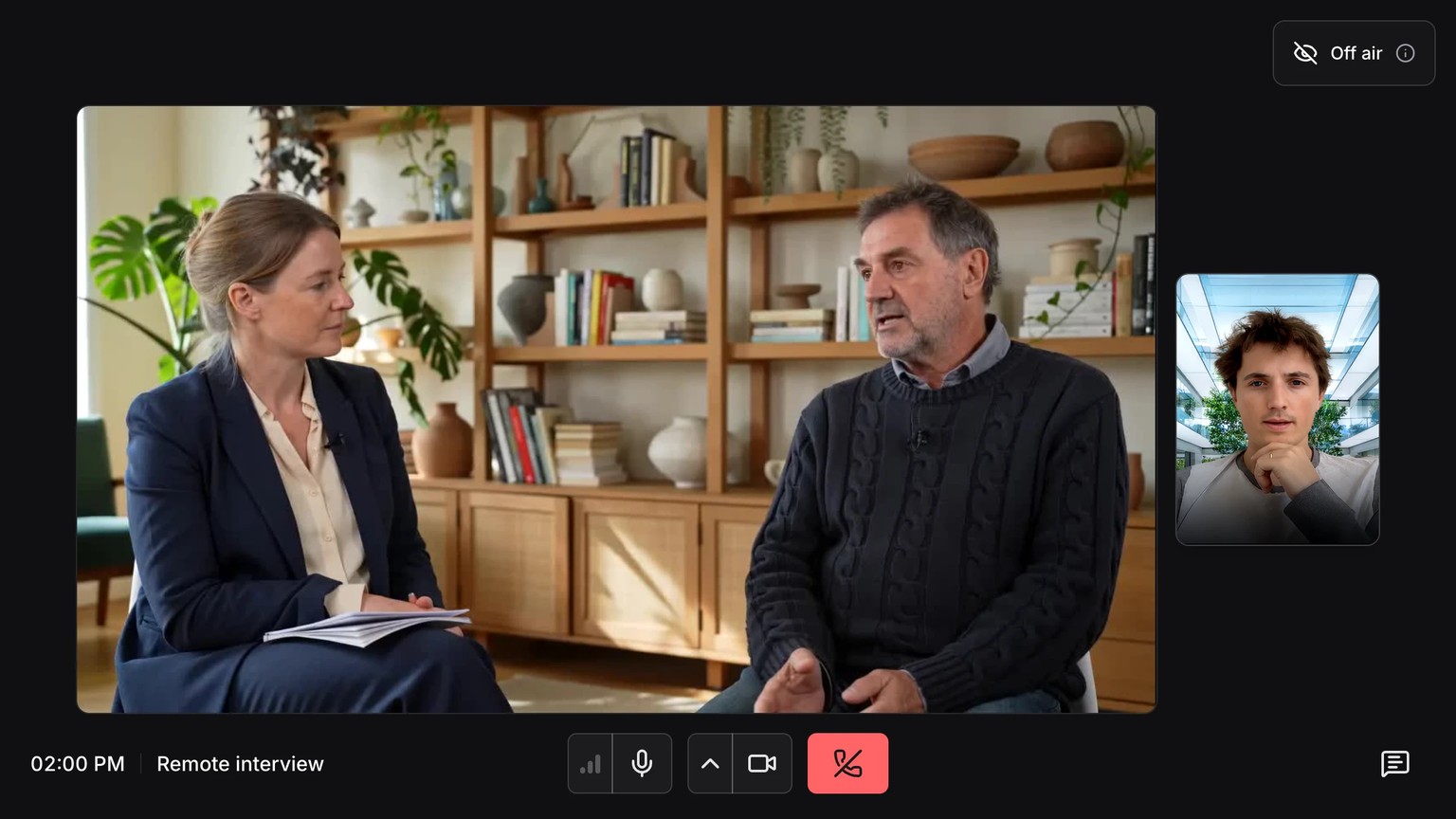
On the Deck’s main page, press this key to remove the guests’ picture and sound from the program while keeping the call connected.
 Meeting audio
Guests see the Off air status. They can still watch the studio program and send you messages in Chat. Press the key again to restore their picture and sound to the program.
Chat
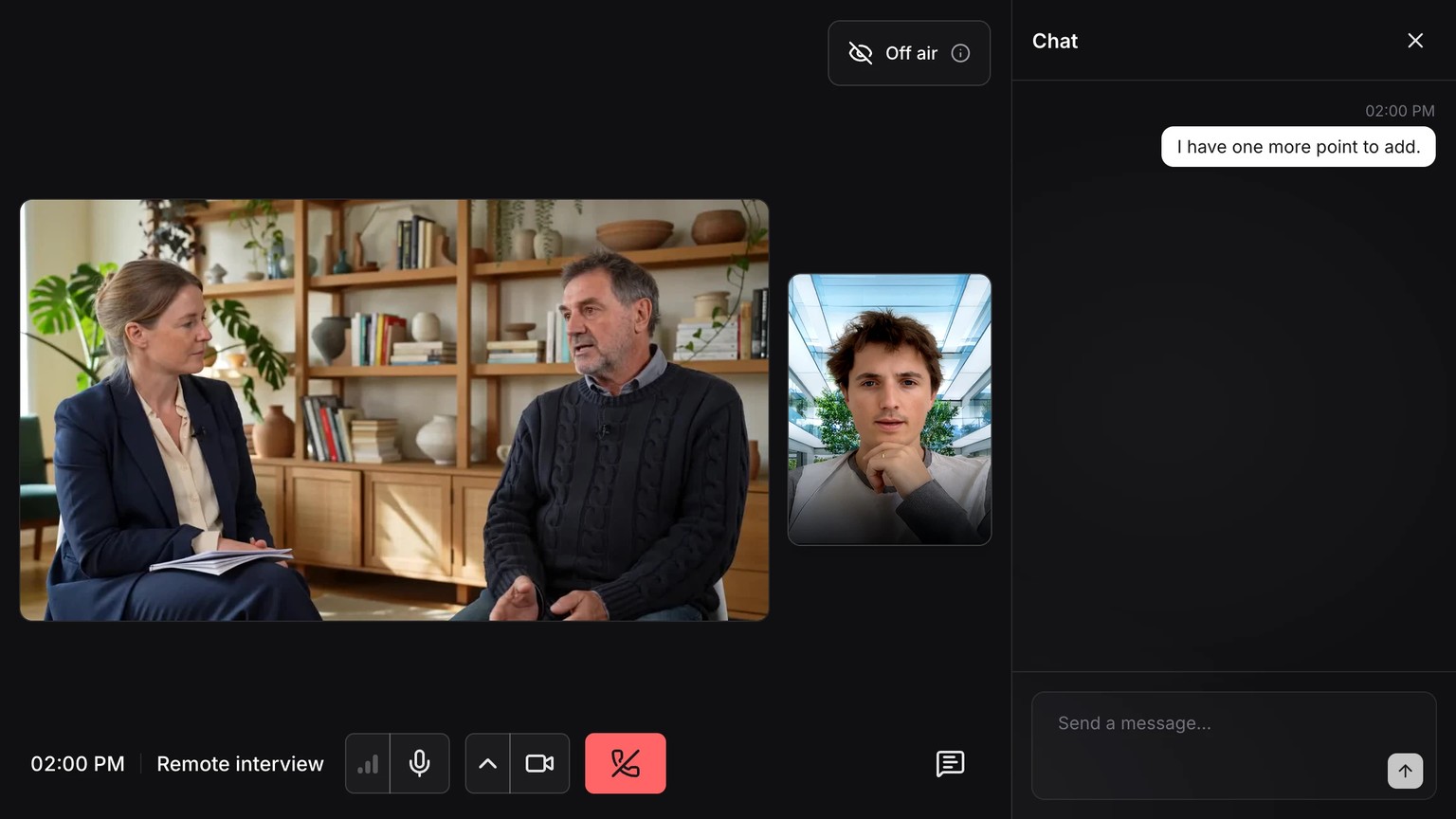
The guest can open Chat to send a message to the studio, even while off air. Messages appear in the monitoring interface without becoming part of the recorded or streamed program. You can also read them in Miroir Remote’s Meeting panel, under Chat.
Leave the meeting
- Menu
- Meeting
 Leave
Leave
Press Leave to disconnect the studio from the meeting.
Keep guests on separate tracks
To edit your guests’ video or voices separately, enable the corresponding ISO tracks in the profile before recording.
If a guest joins after recording starts, their tracks begin when they arrive.
Schedule a meeting in advance
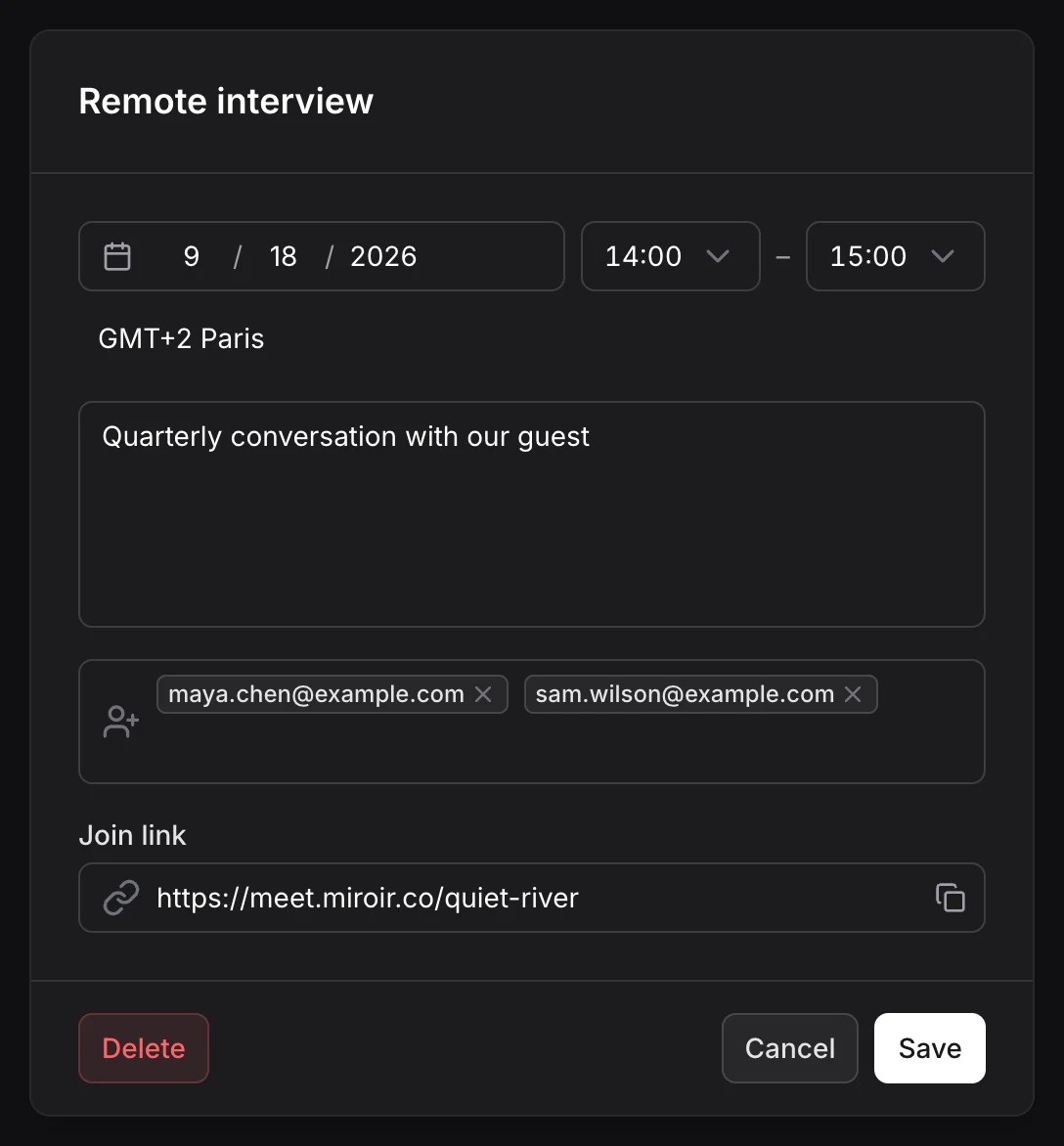
- Enter a title that makes the show easy to recognize.
- Choose the date, start time, end time and time zone.
- Enter the guests’ email addresses, then click Create.
Each invitee receives an email with a join link and a calendar event. To invite someone another way, reopen the meeting and copy its Join link.
- Menu
- Meeting
 Interview (example)
On the day of the show, select the scheduled meeting. The studio joins it and shows the join URL and QR code again.
The Deck shows today’s meetings. Check the date and time zone in Meetings. The Director 4K must also be connected to the internet, and a session must be running.