
Video outputs
Assign video outputs to monitoring, the program feed or a stage screen.
Connect your display or capture card to an HDMI or DisplayPort output in the Director 4K’s SYSTEM I/O section.
Assign outputs
Under Settings → Displays, assign a use to each output, then click Save.
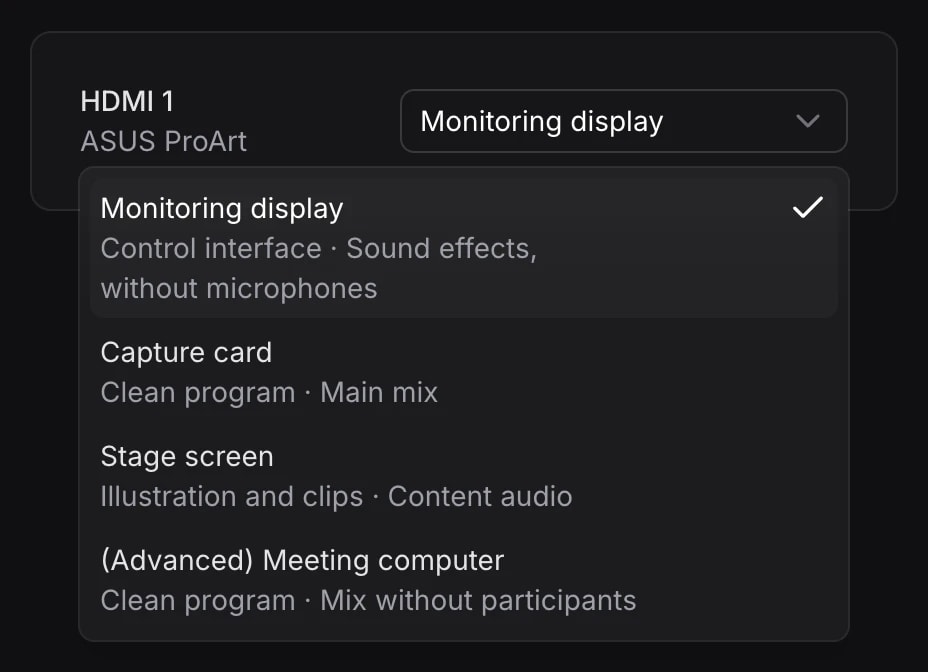
SettingsDisplays
Monitoring display
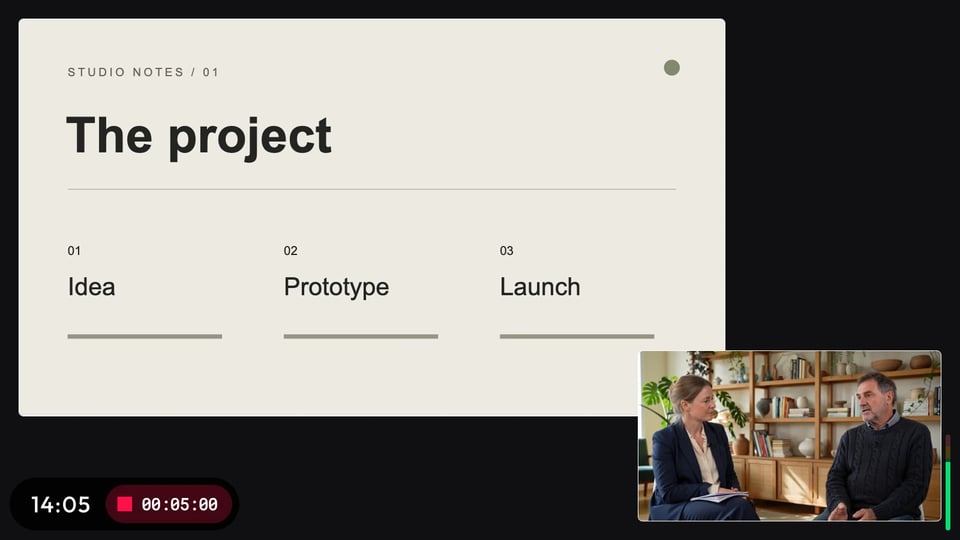
Embedded audio
- Excluded:Studio microphones
- Included:Presentation computer
- Included:Clips
- Included:Guests via Miroir
- Included:Interface sounds
Capture card
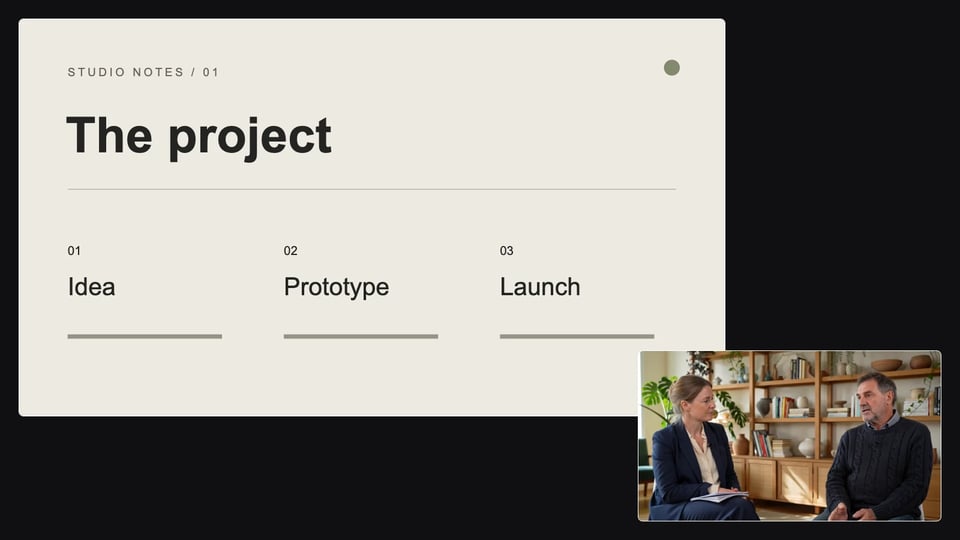
Embedded audio
- Included:Studio microphones
- Included:Presentation computer
- Included:Clips
- Included:Guests via Miroir
- Excluded:Interface sounds
Stage screen
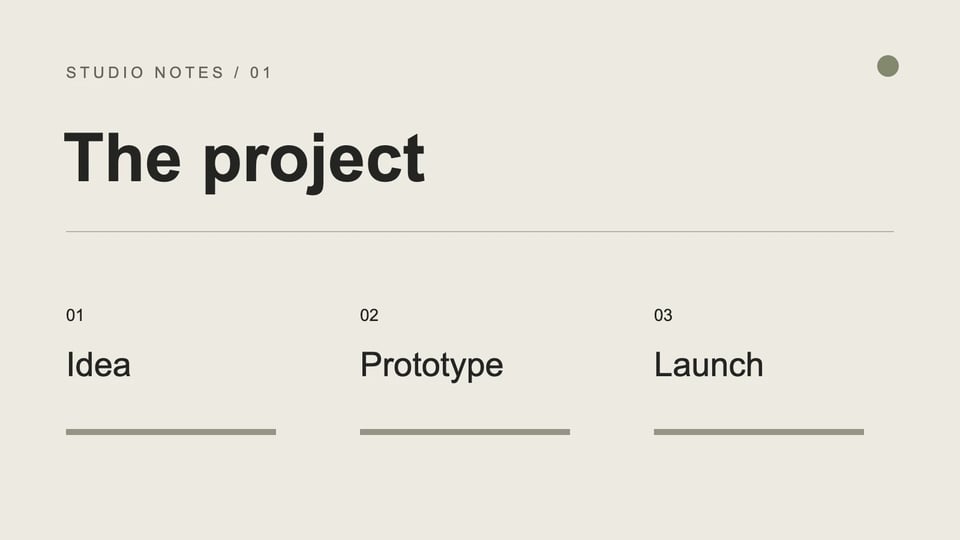
Embedded audio
- Excluded:Studio microphones
- Included:Presentation computer
- Included:Clips
- Excluded:Guests via Miroir
- Excluded:Interface sounds
Meeting return feed
To use the presentation computer for a video call, select (Advanced) Meeting computer. The audio return prevents participants from hearing their own voices echoed back.
Embedded audio
- Included:Studio microphones
- Excluded:Presentation computer
- Excluded:Clips
- Included:Guests via Miroir
- Excluded:Interface sounds