Audio
Connect your microphones to a multichannel USB mixer or audio interface, then connect it to the Director 4K.
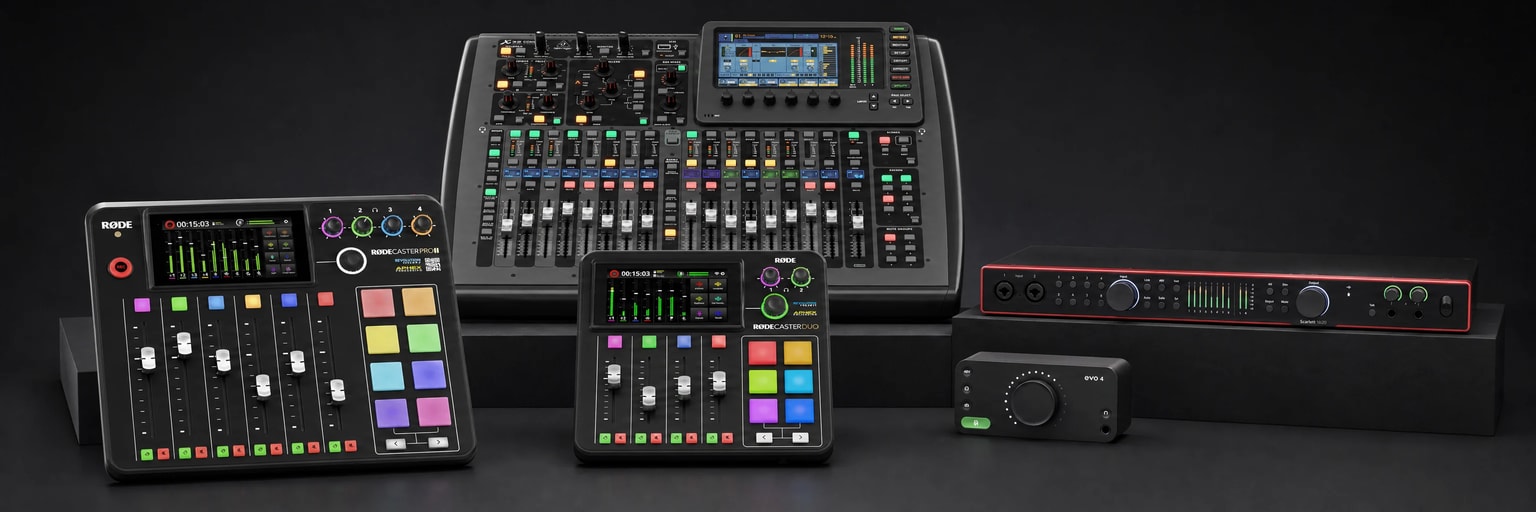
Select a model or device type to see its input and output settings.
Inputs
Prepare the RØDECaster
On the console, use firmware 1.7.3 or later and connect the Director 4K to USB 1. Keep microphones on matching-numbered faders, with pan centered.
Under Settings → Outputs → Multitrack → USB, choose Pre-fader or Post-fader. In pre-fader mode, Bypass Processing records unprocessed audio.
Under Settings → Outputs → Routing → USB 1, choose Custom and send only microphones in use, without the USB return.
Prepare the RØDECaster Pro
On the console, under Settings → Advanced → Audio:
- Multitrack: enable USB;
- Processing: enable USB Mix-Minus.
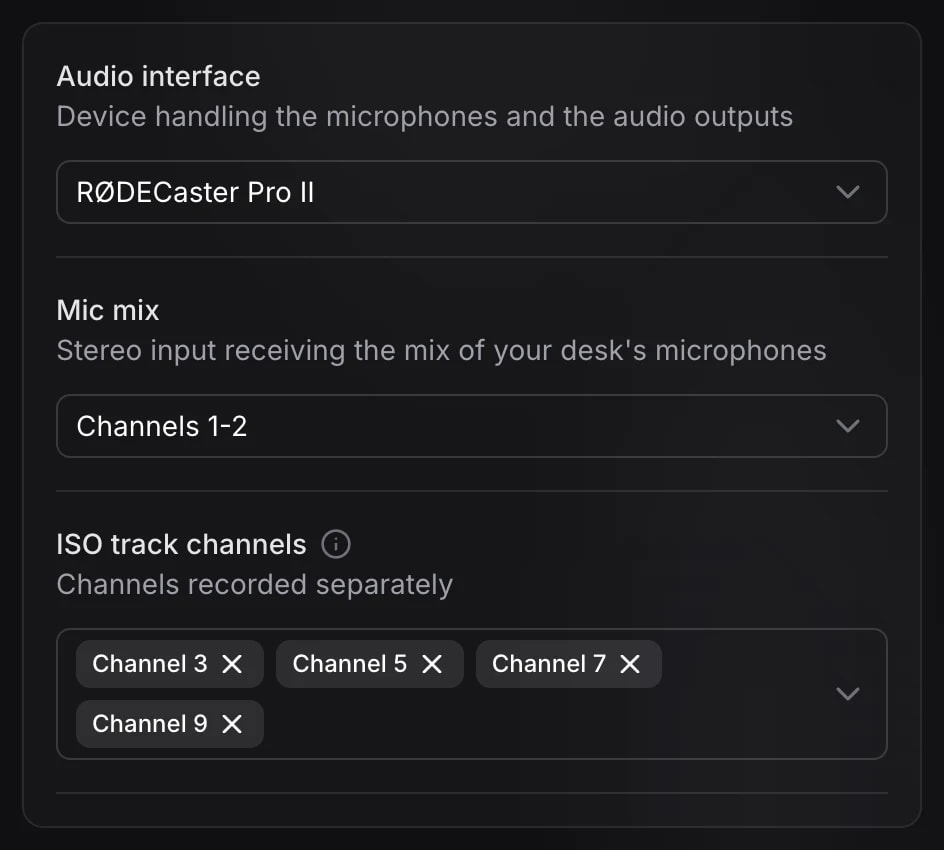
In Miroir Remote, open Settings → Audio and select your device. Under Mic mix, select the two channels that carry the studio voices together. This mix must contain only the microphones, with no audio returned from the Director 4K.
| Signal | Channels |
|---|---|
| Mic mix | 1‑2 |
| Individual microphones | 3, 5, 7, 9 for microphones 1 to 4 |
| Signal | Channels |
|---|---|
| Mic mix | 1‑2 |
| Individual microphones | 3, 5 for microphones 1 and 2 |
| Signal | Channels |
|---|---|
| Mic mix | 1‑2 |
| Individual microphones | 3, 4, 5, 6 for microphones 1 to 4 in use |
Use the mixer’s manual to find the USB pair carrying only the microphone mix and the individual channels of your microphones. Enter the Mic mix pair in Miroir Remote and adjust the mixer’s USB send if needed.
Find the USB channels for the microphone mix and each individual microphone in the interface’s manual. Enter the Mic mix pair in Miroir Remote. Configure routing if the interface supports it.
Outputs
Connect headphones or speakers to your audio device. In Miroir Remote, open Settings → Audio → Interface outputs.
For the outputs in use, choose what you want to hear:
- Monitoring headphones: studio microphones, content and remote guests.
- Monitoring speaker: content and remote guests, without studio microphones.
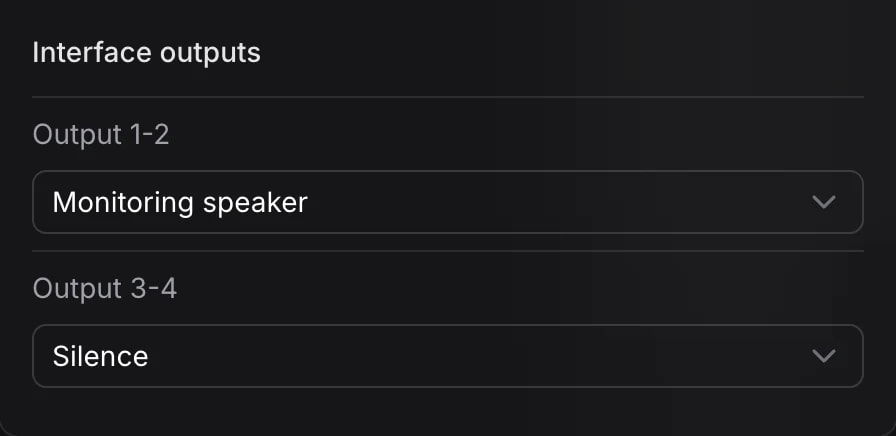
Under Interface outputs in Miroir Remote, assign Monitoring headphones or Monitoring speaker to Output 1-2, depending on your listening setup. The corresponding mix is sent to the RØDECaster over USB.
On the RØDECaster, open Settings → Outputs → Routing, choose Custom for each headphone or Monitor output in use and send USB 1 only. Those outputs then follow the Deck’s mutes.
Under Interface outputs in Miroir Remote, assign Monitoring speaker to Output 1-2, even when using headphones.
On the RØDECaster Pro, raise the USB fader to hear sound from the Director 4K. This console adds local microphones directly to headphones and Monitor outputs, even when muted on the Deck. Its Monitor outputs therefore cannot provide a microphone-free mix.
USB multitrack · USB Mix-Minus · Headphones and Monitor outputs
Find the mixer’s USB playback channels for your headphones or speakers and enter that pair under Interface outputs. Route only the USB return to those listening outputs so they follow the Deck’s mutes.
Find the USB playback pair for your headphones or speakers, often 1–2, and select it under Interface outputs. Disable Direct Monitor or set Input/Playback to Playback.
If your monitoring display has built-in speakers, you can use them instead of separate speakers. They receive the mix without microphones over HDMI or DisplayPort.
Check the audio
Under Settings → Audio, watch the meters while the person speaks. If no channel responds, check the microphone connection and the device’s USB send.
If individual channels respond but voices are missing from the program, also check the Mic mix pair. During the session, check MIC and the Microphones level in Live.
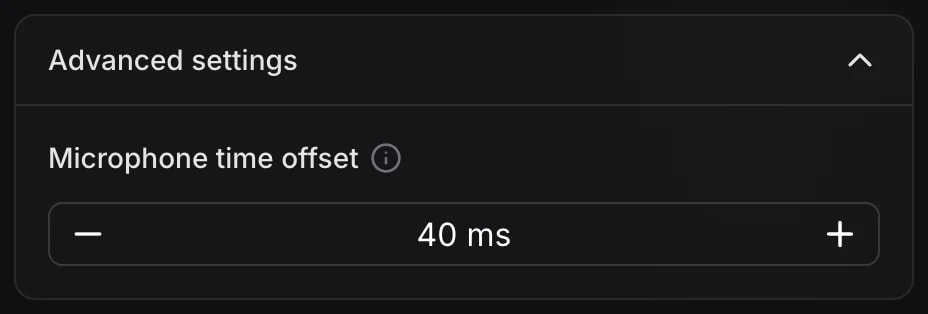
This setting corrects lip-sync, the timing between sound and picture.
Under Advanced settings, adjust the audio delay in milliseconds. If you hear the voice before the lips move, increase the value to delay the sound. If you hear it after, decrease the value without going below 0. Then click Save.