
Zigbee devices
Zigbee devices communicate wirelessly with the Director 4K. They let you control lights and power to devices connected to Zigbee plugs.
Pair a plug or light
Follow the device’s manual to reset it and enable pairing mode.
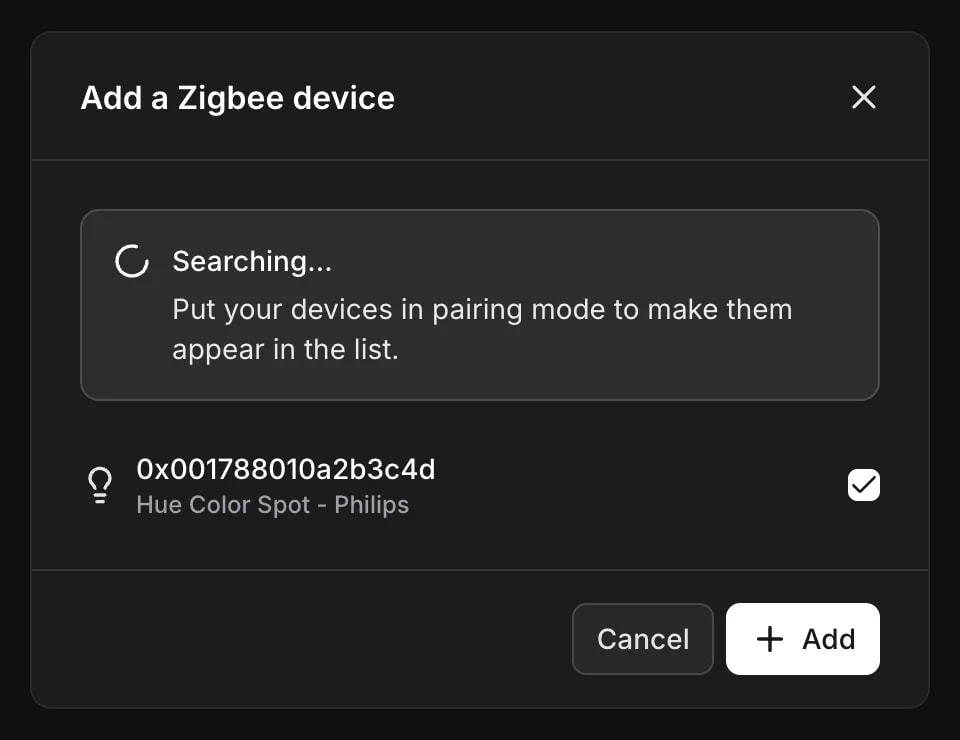
Open Add a Zigbee device and leave the dialog open while it searches.
- When the device appears, wait for identification to finish.
- Select the device.
- Click Add.
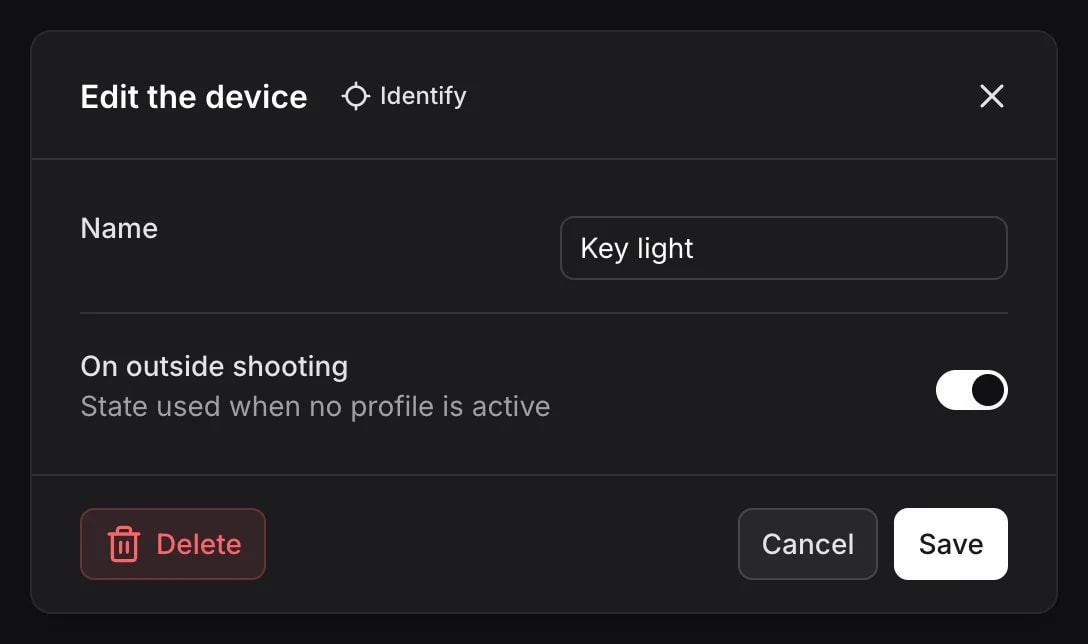
- Open its settings, give it a name, then click Save.
Identify briefly turns the plug or light on and off so you can locate it.
Temporarily move it closer to the Director 4K, reset it again, then reopen Add a Zigbee device. Check that it is no longer paired with another gateway.
A device shown with a warning has not finished identification. Leave it powered on and retry pairing.
To save these settings and recall them during a session, create a lighting mood.
Use a wall switch
When you’re not shooting, some studio lights can serve as everyday room lighting controlled by a wall switch.
Compatible Zigbee wall switches control the lights marked On outside shooting, without opening Miroir Remote. All paired switches control this same group.
- Pair the switch like a plug or light.
- Open each light you want to control and enable On outside shooting.
- Click Save.
When a session ends, the Director 4K turns this group on and the other automatic lights off. Only lights with an on/off control can join the group.
Models and controls
2,549 models
Acuity Brands Lighting (ABL)
RB56AC
On/offBrightnessWhite temperatureColour
Acuity Brands Lighting (ABL)
RB56SC
On/offBrightnessWhite temperatureColour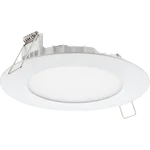
Acuity Brands Lighting (ABL)
WF4C_WF6C
On/offBrightnessWhite temperature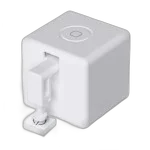
Adaprox
TS0001_fingerbot_1
On/off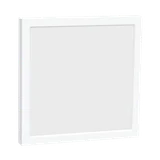
ADEO
84845506
On/offBrightnessWhite temperatureColour
ADEO
84845509
On/offBrightnessWhite temperatureColour
Page 1 of 425
Lights and on/off devices only. Excludes remotes and devices with multiple independent outputs.